

Quick Answer: Start with your PC's graphics capability, your driving position and the room available around your rig. A single 27- or 32-inch screen is straightforward to position; a 49-inch ultrawide gives a wider uninterrupted image; three screens can add side visibility. Check game support, resolution, mounting and total cost before choosing.

A bigger monitor is not automatically better for racing. Poor viewing distance, insufficient frame rate or unsuitable mounting can make expensive hardware frustrating. Use these checks before comparing models.
Start with the Space and PC You Already Have
Measure eye-to-screen distance, available width and clearance around your wheelbase. Check your graphics card's outputs and your simulator's current performance. These details matter more than advertised maximum refresh rate.
A shared desk usually favours one screen. A dedicated cockpit may have space for more, but its mounting hardware still needs checking. Measure with the steering wheel and seat in their actual driving positions.
Screen Size and Layout: Make the Trade-offs Clear
| Setup | What It Helps With | Check Before Ordering |
|---|---|---|
| Single 27–32-inch | Compact footprint and simpler setup | Eye-to-screen distance and available width |
| Single 49-inch ultrawide | Wider image without joins between panels | Desk or stand width, game aspect-ratio support and GPU load |
| Triple screens | Side views with adjustable screen angles | Three usable outputs, alignment, mounting and extra rendering load |
A 49-inch ultrawide is not automatically equivalent to three angled monitors: side visibility depends on positioning, field-of-view settings and game support. Set the in-game field of view after positioning the screen. On a very wide display, also check whether essential HUD elements land too far from your normal sightline; move them in the game settings if supported.
Flat or Curved: Which Feels Right?
Curvature can make the edges of a wide display easier to view from a central seat. Flat panels are straightforward for mixed desk work and can be arranged at deliberate angles in a triple-screen rig. Neither shape fixes a poor viewing distance or incorrect field-of-view setting.
Match Resolution and Refresh Rate to Real Performance
A 5120 × 1440 display asks your PC to draw twice as many pixels as a 2560 × 1440 display. Three QHD screens demand more again. Check game benchmarks for your graphics card at the intended resolution; do not assume that a monitor labelled 240 Hz will make your simulator run at 240 frames per second.
If you are unsure whether your PC can handle a display upgrade, record the resolution and frame rate you achieve in your current simulator. Compare that baseline with independent benchmarks for your exact graphics card and game. Allow extra performance headroom for crowded grids, weather effects and demanding tracks.
Panel type is another practical choice. IPS suits mixed gaming and desktop work with wide viewing angles. OLED offers strong contrast and fast pixel response, but owners should follow the manufacturer's care guidance for persistent interface elements. Consider your use between races, especially if the same display shows static work applications for long periods.
Two Monitor Examples for Different Setup Needs
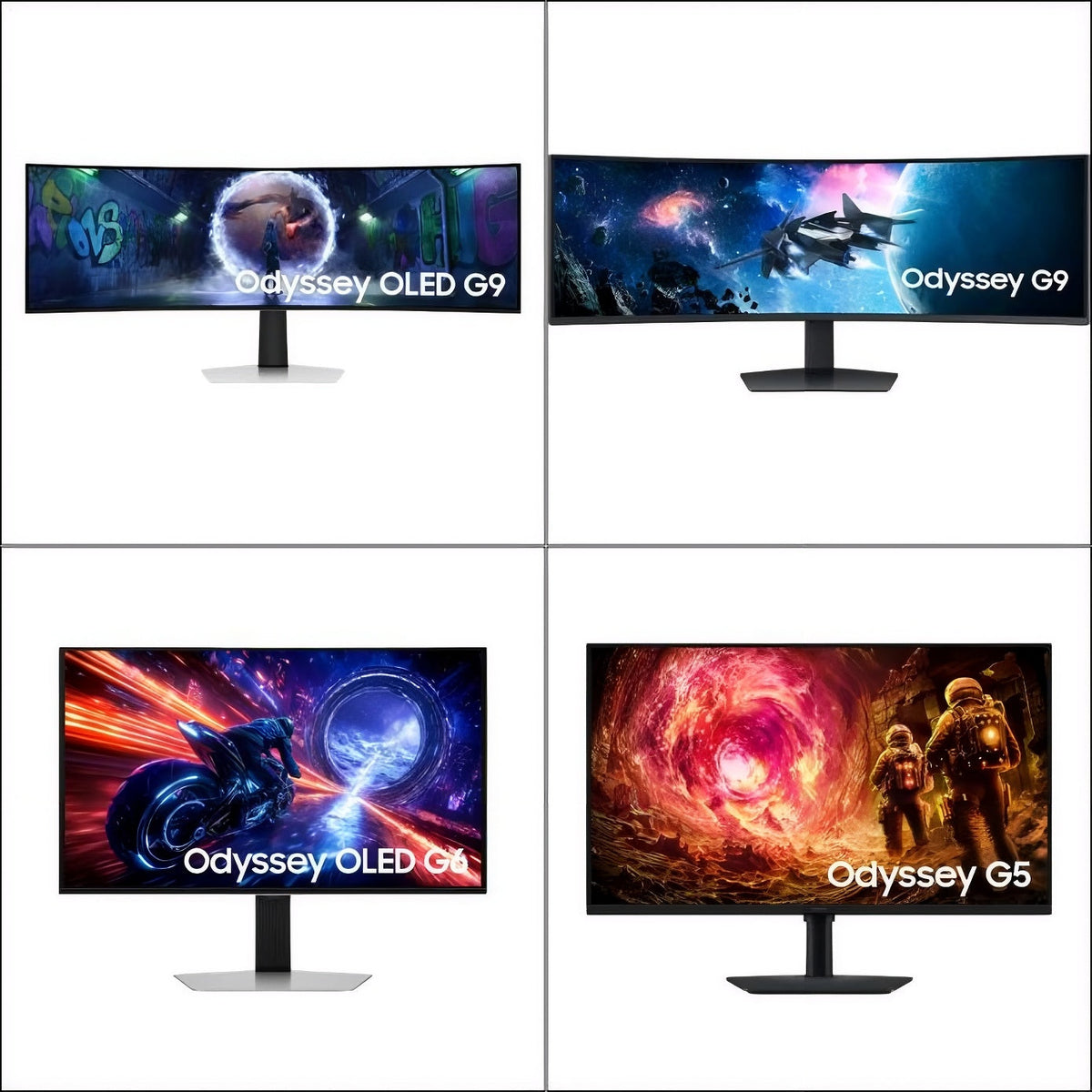
Samsung 32-inch Odyssey G5 G50F
This model has a 32-inch IPS panel, 2560 × 1440 resolution and 180 Hz refresh rate. Check mounting and GPU outputs before deciding whether one or several screens fit.
View G5 Specifications and Availability →Samsung 49-inch Odyssey G9 G95C
Its curved 32:9 VA panel has 5120 × 1440 resolution and a 240 Hz refresh rate. Check its width and rendering demands.
View G9 Specifications and Availability →These are examples, not complete monitor-and-mount bundles.
Mounting and Checkout Checks That Prevent Surprises
Confirm the monitor's weight without its stand, mounting pattern and the stand or arm's load limit. Leave room for cables and steering-wheel movement. If your rig moves, allow clearance throughout its full travel; review the Motion Systems collection and the manufacturer's mounting guidance.
Before chasing the best deals on gaming monitors, compare the full cost: display, any required mounting hardware, delivery and applicable VAT. Buyers in Finland, Germany, the Netherlands, Belgium and France should check the selected country and the current checkout total rather than relying on a price shown for another market.
For wider rig planning, use the complete sim racing setup guide ; for other peripherals, see the gaming accessories guide .
Choose a Monitor That Fits Your Setup
Choose your layout, then shortlist monitors your PC and mount can support.
Compare Gaming Monitors for Your Setup →


Share:
Steering Controllers: How to Map GT Wheel Buttons and Fix Common Problems
How Rigid Should a Sim Racing Cockpit Be? Flex, Torque and Pedal Stability